Your First Python Program “Hello, World!” & Running Code
Welcome to your very first Python program – the legendary “Hello, World!”
This is the moment every coder remembers: the first time your computer talks back to you. We’re going to make it personal with a Port Harcourt twist. Follow along exactly – you’ll have output in under 2 minutes!
Step 1: Create Your First Python File in VS Code
- Open VS Code (you should have it running from the last setup).
- Click File → New File (or Ctrl+N / Cmd+N).
- Save it right away: File → Save As…
- Name it: hello_world.py (the .py extension is super important – it tells VS Code this is Python code).
- Save it in your “PythonCourse” folder (or Desktop – wherever you like).
Step 2: Write the Classic “Hello, World!” (with Your Twist)
Type or copy-paste this into the editor:
Python
# This is a comment – Python ignores lines starting with #
print("Hello, World!")                  # The classic one
print("Hello from Port Harcourt, Rivers State! 🌴💻")  # Your location shoutout
print("Jeffmoniac just ran his first Python program! 🚀🐍") # Victory message- Notice:
- print() is a built-in function that displays text on the screen.
- Text goes inside double quotes ” “ or single quotes ‘ ‘.
- Emojis work perfectly in Python 3!
- The # lines are comments (for notes to yourself – ignored when running).
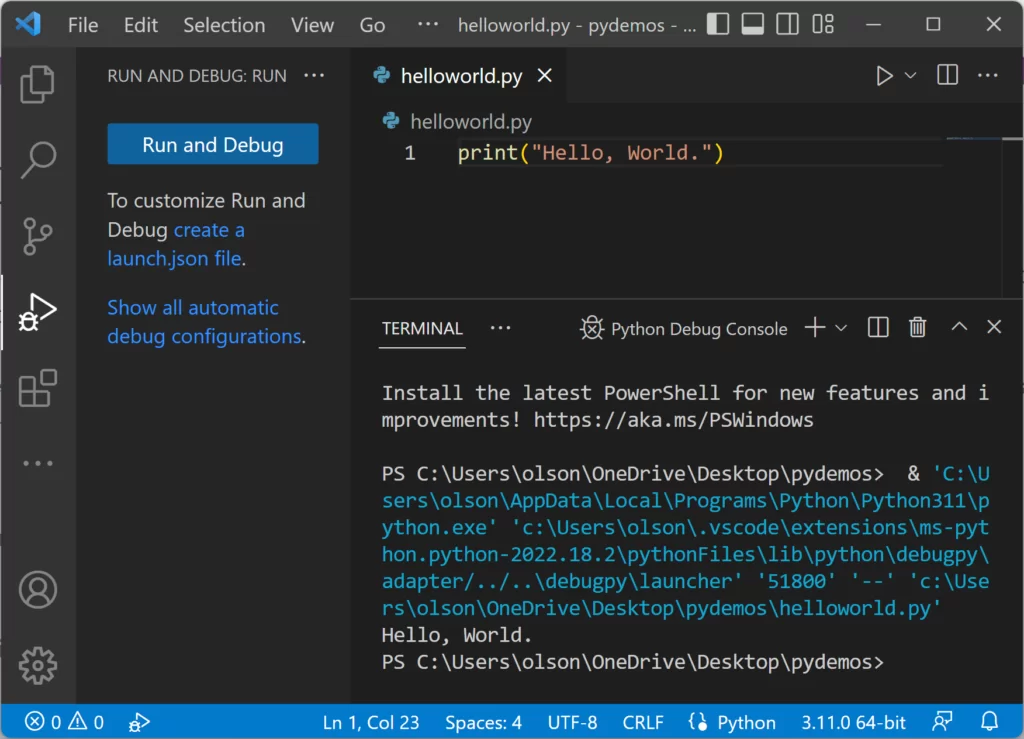
Your screen should look something like this (dark theme example):
Step 3: Run Your Code (Multiple Easy Ways in VS Code)
Pick whichever feels best:
Way 1: Easiest (Recommended for Beginners)
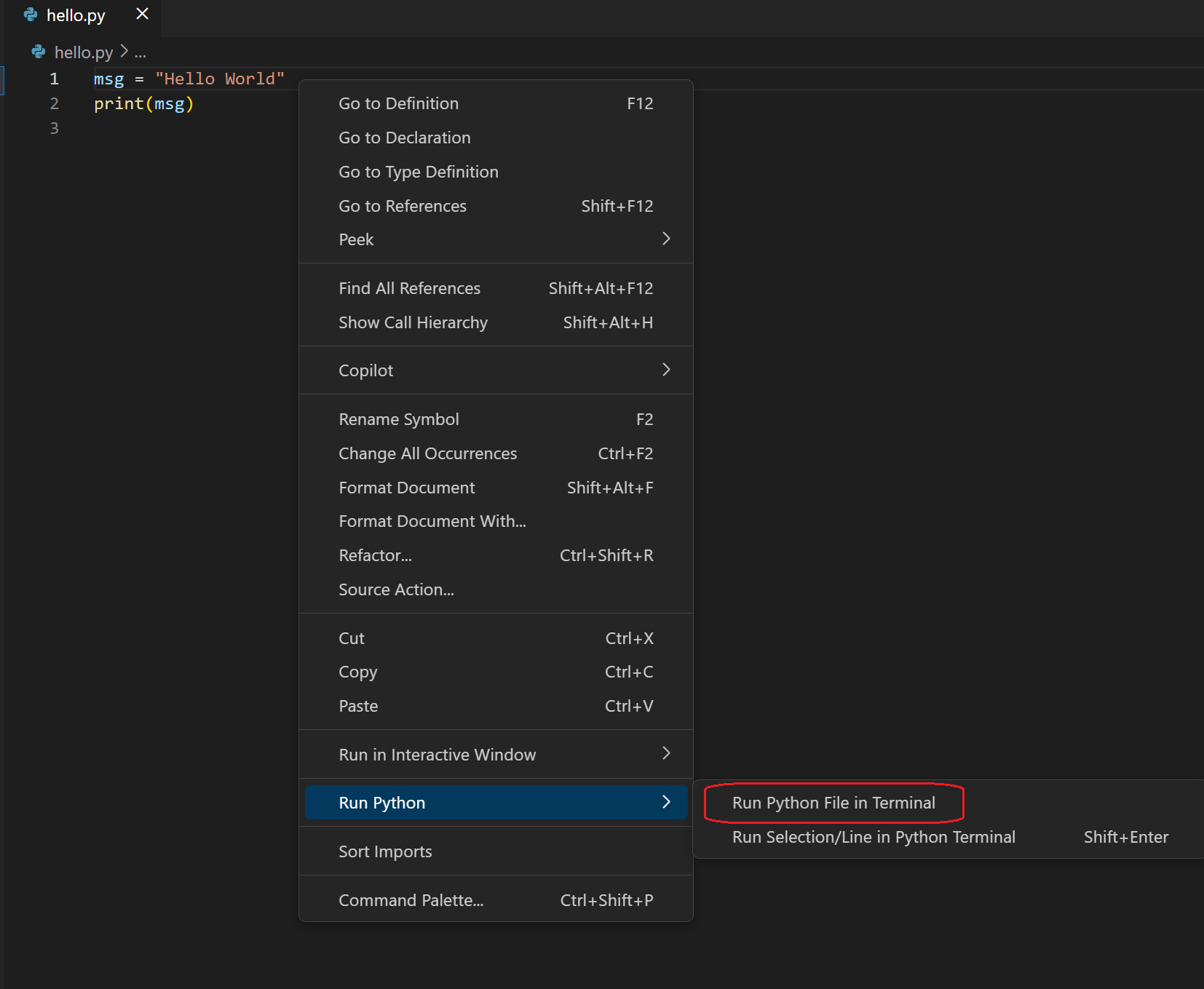
- Right-click anywhere in the code area.
- Select Run Python File in Terminal (or look for the green play button ▶️ in the top-right corner – click it).
- Boom! A terminal opens at the bottom and shows your output.
Way 2: Keyboard Shortcut
- Press Ctrl + Alt + N (Windows/Linux) or Cmd + Option + N (Mac) – if Code Runner extension is installed (optional but handy).
- Or just Ctrl + Shift + P → type “Run Python File” → Enter.
Way 3: From Terminal Manually (good to know)
- In VS Code’s terminal (bottom panel: Terminal → New Terminal if not open):
- Type: python hello_world.py (or python3 hello_world.py on macOS/Linux if needed)
- Press Enter.
Expected output (something like this):
text
Hello, World!
Hello from Port Harcourt, Rivers State! 🌴💻
Jeffmoniac just ran his first Python program! 🚀🐍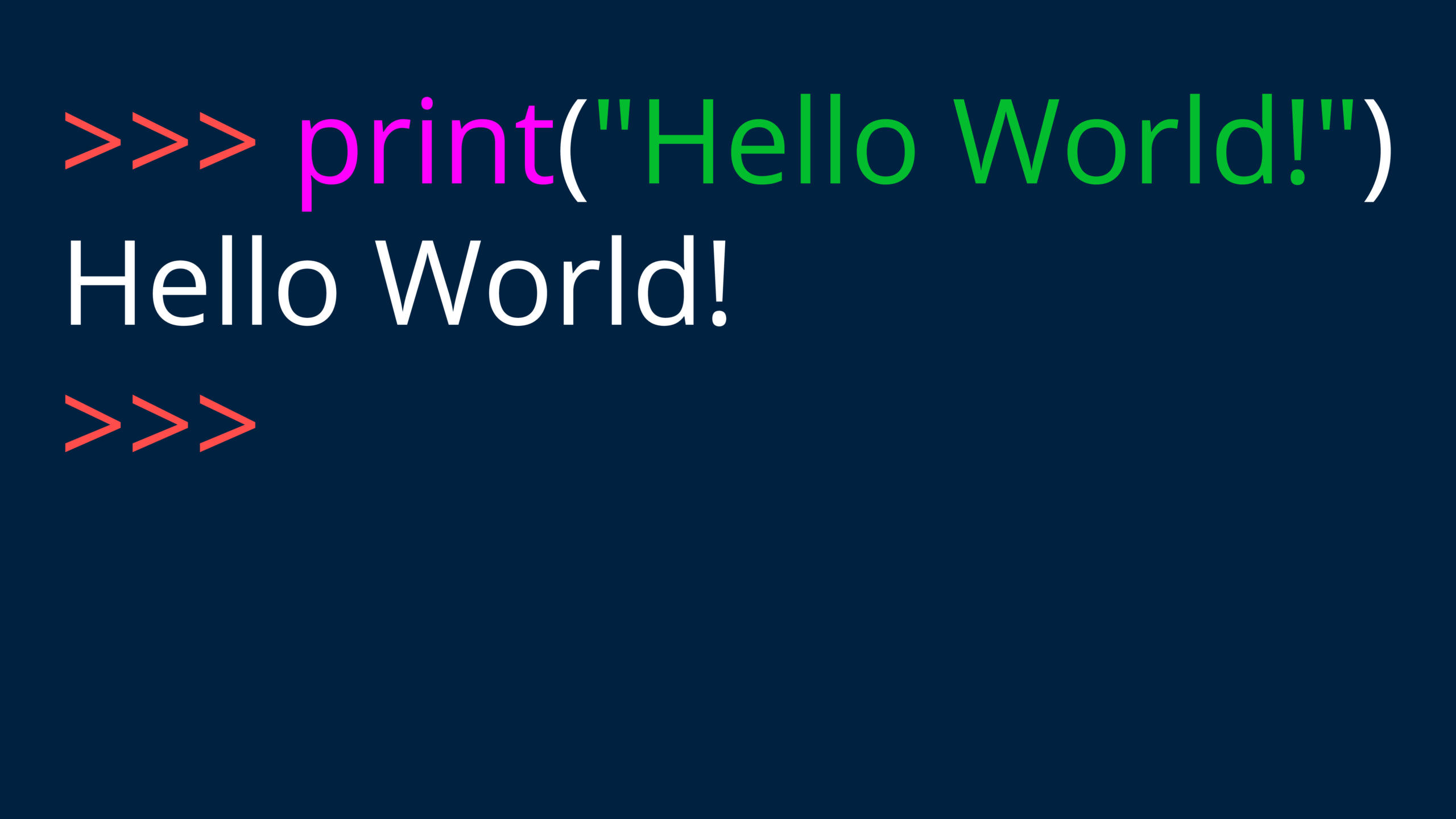
If you see this – congratulations! 🎉 You’ve officially become a Python programmer. Screenshot it and celebrate – this is your first win!
Quick Troubleshooting (Common Beginner Issues)
- “python: command not found” → Interpreter not selected. Bottom-right status bar: Click “Python X.Y.Z” → select your 3.14.3 version.
- No output / errors → Make sure file ends in .py, no typos in print, and quotes match.
- SyntaxError → Check for missing quotes or parentheses.
- Terminal shows old stuff → Clear it: Type cls (Windows) or clear (Mac/Linux) and Enter.
Try running it now! Paste your output here (or any error message) – I’ll cheer you on or fix it live.
How does it feel to see your name and city printed by code you wrote? 😎
Next up in the course: Exploring the Python Interpreter (playing live) + basic commands. Ready when you are – let’s keep building! 🐍💪Welcome to your very first Python program – the legendary “Hello, World!”
This is the moment every coder remembers: the first time your computer talks back to you. We’re going to make it personal with a Port Harcourt twist. Follow along exactly – you’ll have output in under 2 minutes!
Step 1: Create Your First Python File in VS Code
- Open VS Code (you should have it running from the last setup).
- Click File → New File (or Ctrl+N / Cmd+N).
- Save it right away: File → Save As…
- Name it: hello_world.py (the .py extension is super important – it tells VS Code this is Python code).
- Save it in your “PythonCourse” folder (or Desktop – wherever you like).
Step 2: Write the Classic “Hello, World!” (with Your Twist)
Type or copy-paste this into the editor:
Python
# This is a comment – Python ignores lines starting with #
print("Hello, World!")                  # The classic one
print("Hello from Port Harcourt, Rivers State! 🌴💻")  # Your location shoutout
print("Jeffmoniac just ran his first Python program! 🚀🐍") # Victory message- Notice:
- print() is a built-in function that displays text on the screen.
- Text goes inside double quotes ” “ or single quotes ‘ ‘.
- Emojis work perfectly in Python 3!
- The # lines are comments (for notes to yourself – ignored when running).
Your screen should look something like this (dark theme example):
Step 3: Run Your Code (Multiple Easy Ways in VS Code)
Pick whichever feels best:
Way 1: Easiest (Recommended for Beginners)
- Right-click anywhere in the code area.
- Select Run Python File in Terminal (or look for the green play button ▶️ in the top-right corner – click it).
- Boom! A terminal opens at the bottom and shows your output.
Way 2: Keyboard Shortcut
- Press Ctrl + Alt + N (Windows/Linux) or Cmd + Option + N (Mac) – if Code Runner extension is installed (optional but handy).
- Or just Ctrl + Shift + P → type “Run Python File” → Enter.
Way 3: From Terminal Manually (good to know)
- In VS Code’s terminal (bottom panel: Terminal → New Terminal if not open):
- Type: python hello_world.py (or python3 hello_world.py on macOS/Linux if needed)
- Press Enter.
Expected output (something like this):
text
Hello, World!
Hello from Port Harcourt, Rivers State! 🌴💻
Jeffmoniac just ran his first Python program! 🚀🐍If you see this – congratulations! 🎉 You’ve officially become a Python programmer. Screenshot it and celebrate – this is your first win!
Quick Troubleshooting (Common Beginner Issues)
- “python: command not found” → Interpreter not selected. Bottom-right status bar: Click “Python X.Y.Z” → select your 3.14.3 version.
- No output / errors → Make sure file ends in .py, no typos in print, and quotes match.
- SyntaxError → Check for missing quotes or parentheses.
- Terminal shows old stuff → Clear it: Type cls (Windows) or clear (Mac/Linux) and Enter.
Try running it now! Paste your output here (or any error message) – I’ll cheer you on or fix it live.
How does it feel to see your name and city printed by code you wrote? 😎
Next up in the course: Exploring the Python Interpreter (playing live) + basic commands. Ready when you are – let’s keep building! 🐍💪